In a world where every moment is a potential Instagram post, mastering the art of cropping photos on an iPhone can be your secret weapon. Imagine capturing the perfect sunset but accidentally including that pesky street lamp in the corner. Fear not! With just a few taps, you can transform your images from “meh” to “wow!” faster than you can say “filter.”
Understanding Photo Cropping
Photo cropping enhances images by concentrating on key elements. Mastering this skill leads to significantly better photographs.
Importance of Cropping
Cropping plays a crucial role in photography. It improves visual clarity by removing distractions. A well-cropped photo draws attention to the subject, creating a more engaging image. By framing the subject effectively, a photographer enhances the overall composition. This simple adjustment transforms ordinary photos into captivating visuals that resonate with viewers.
Common Reasons to Crop Photos
There are several common reasons for cropping photos. Photographers often remove unwanted objects that steal focus from the main subject. Adjusting the aspect ratio can improve harmony and balance within the image. Some people crop to highlight details or emotions, resulting in a stronger visual story. Correcting composition issues is another frequent motive for cropping. Overall, thoughtful cropping makes images more compelling and visually appealing.
How to Crop a Photo on iPhone
Cropping photos on an iPhone enhances their appeal and removes distractions. The process is straightforward and user-friendly.
Using the Photos App
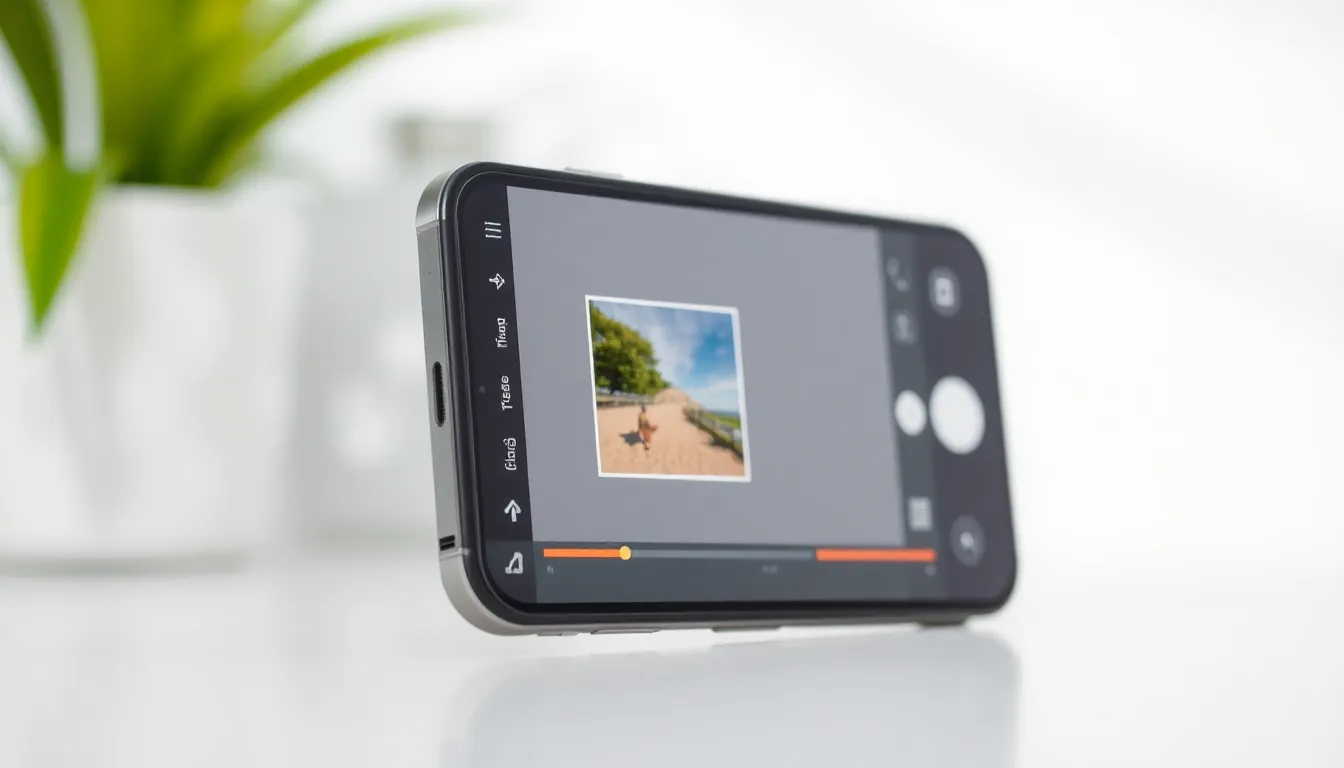
Launch the Photos app, and select the photo needing adjustment. Tap the “Edit” button at the top right of the screen. Choose the crop icon at the bottom. Adjust the edges by dragging the corners, or use preset aspect ratios for better framing. After making adjustments, tap “Done” to save changes. The original photo remains untouched, allowing users to revert if needed.
Using Third-Party Apps
Explore third-party apps for additional cropping features. Popular options include Snapseed and Adobe Lightroom. Open the chosen app and import the photo. Each app offers tools for cropping, including freeform and fixed ratios. Utilize additional editing options to enhance the image further. Finally, save the edited photo to the camera roll. This method provides more advanced editing capabilities, catering to diverse needs.
Tips for Effective Cropping
Effective cropping requires attention to detail and an understanding of composition. Mastering the following techniques enhances photos significantly.
Maintaining Aspect Ratios
Maintaining aspect ratios keeps images visually appealing. Users should consider standard ratios like 1:1 for Instagram posts or 16:9 for landscapes. These proportions bring balance and professionalism to photos. Retaining the aspect ratio during cropping prevents distortion; it maintains the integrity of the image. Adjustments can easily be made using preset options in the Photos app. Many third-party apps also offer customized ratios to fit specific needs. Prioritize aspect ratio for a polished final product.
Focusing on the Subject
Focusing on the subject makes an image more impactful. Attention shifts toward main elements, creating a stronger connection with viewers. Eliminating distractions around the subject helps direct the audience’s gaze. Users can drag the crop box closer to the subject for better emphasis. Centering the subject often enhances viewer engagement. Experimenting with the subject’s placement can also yield striking results. Keep the focus sharp, and the photo will resonate much more.
Troubleshooting Common Issues
Users may encounter various issues while cropping photos on an iPhone. Understanding these common problems can streamline the editing process and enhance user experience.
Unable to Crop Photos
Sometimes, users can’t crop photos due to app glitches or system bugs. Restarting the Photos app often resolves minor issues. Should the app still malfunction, users might consider restarting their device. Users must ensure they are using the latest iOS version as updates often fix bugs affecting functionality. Resetting settings can help restore default configurations if problems persist. This may also provide a workaround for persistent cropping issues.
App-specific Problems
Certain third-party apps may present unique challenges when cropping photos. Users might experience crashes or unresponsiveness while trying to edit images. Updating or reinstalling the app usually corrects these problems. Clearing the app’s cache can also improve performance and stability. If the app fails to meet cropping expectations, users should check for compatibility with their iOS version. Seeking support from the app’s customer service team often leads to finding effective solutions for persistent issues.
Mastering the art of cropping photos on an iPhone can significantly elevate visual storytelling. By applying the techniques discussed, users can transform ordinary images into captivating visuals that draw attention. The ability to remove distractions and focus on key elements enhances the overall impact of each photo.
Whether using the built-in Photos app or exploring advanced features in third-party applications, effective cropping is essential for creating engaging content. Users should embrace the creative process and experiment with different aspect ratios and compositions. With practice and attention to detail, anyone can refine their photography skills and produce stunning images that resonate with viewers.